


【小智AI语音开发板】做个自己的Moss机器人?
描述
以下作品由安信可社区用户WT_0213制作
通过小安Moss+AiPi-PalChatV1+AiPi-BW21+机器视觉项目,让家居更加智能,可玩性更高!更有乐趣!
先上视频看看效果:
【电子DIY作品】小安Moss+AiPi-PalChatV1+AiPi-BW21+机器视觉_哔哩哔哩_bilibili
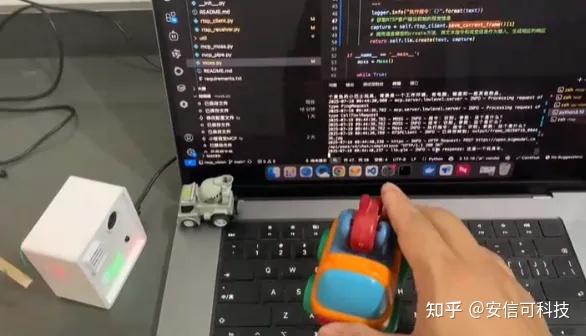
一、硬件
选用AiPi-PalChatV1 + AiPi-BW21 / AiPi-Cam-D200,由于上期做的基于BW21-CBV-Kit火灾隐患警报器刚好符合条件且功能未完全开发出来,所以这次选择AiPi-PalChatV1 + AiPi-BW21组合来做这个项目。
二、背景
最近刷B站看到流浪地球的Moss,感觉非常帅,而且B站也有很多使用小智实现的Moss。
看到这笔者也想要一个Moss了,由于当前技术有限,无法实现完整的类似AiPi-PalChatV1的功能,所以借助AiPi-PalChatV1实现语音功能,通过小智MCP功能做视觉识别。

三、设备
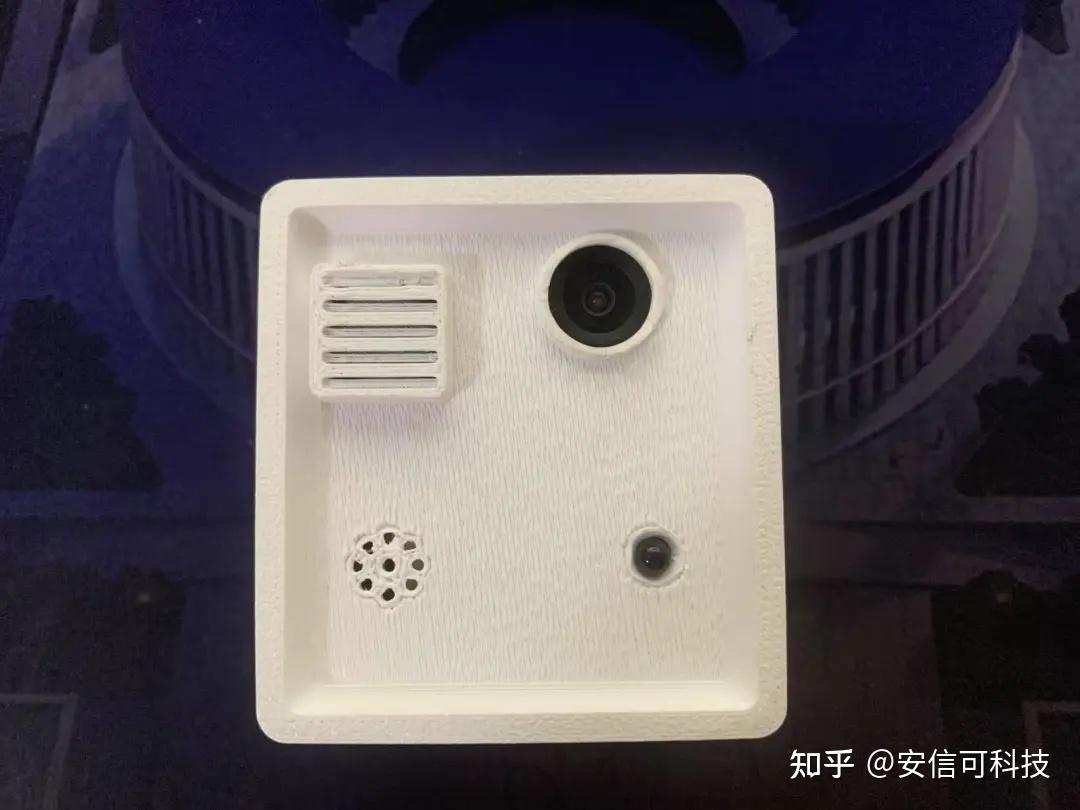
还记得它吗?
是的,这次主角还是它,是不是和Moss有那么一丢丢像?
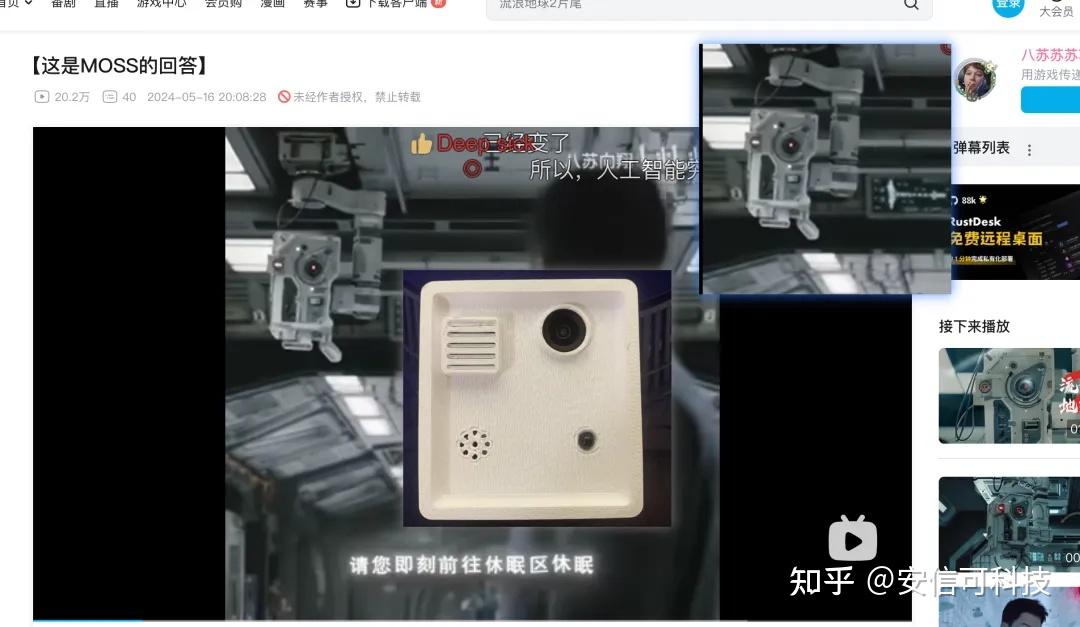
●BW21-CBV-Kit:可以寻找物品,对当前环境进行识别分析。
●硬件利用 AiPi-PalChatV1 + AiPi-BW21 组合,实现为AiPi-PalChatV1添加视觉系统:可以识别当前环境信息,例如:房间环境,物品位置,陈设等等。视觉模型支持的它都可以实现。
由于AiPi-BW21的rtsp视频流有一定延迟,所以检测静态环境或对实施率不高的地方使用很方便;也可以将AiPi-BW21替换为小安派-Cam-D200,提供rtsp视频流就可以。
●智谱glm-4v-plus-0111 视觉模型:支持base64的图像,坏处是它收费,好在费用不高。另外一个是glm-4v-flash模型,好处是免费,坏处是不支持base64图像,必须将图片上传到服务器,然后将url给大模型。(各有利弊,自己取舍使用的模型可以根据自己的需求作调整。很多免费的模型。)
#include < WiFi.h >
#include < PubSubClient.h >
#include < ArduinoJson.h >
#include "RTSP.h"
#include "StreamIO.h"
#include "VideoStream.h"
#include "VideoStreamOverlay.h"
RTSP rtsp;
IPAddress ip;
int rtsp_portnum;
StreamIO videoStreamer(1, 1);
VideoSetting config(VIDEO_FHD, 30, VIDEO_H264, 0);
#define CHANNEL 0
// 定义红外模块引脚
const int infraredPin = 20;
// 定义MQ - 2烟雾模块引脚
const int mq2Pin = A0;
// 定义蜂鸣器引脚
const int buzzerPin = 8;
// 定义烟雾传感器阈值
const int smokeThreshold = 500;
char ssid[] = "SSID";    // your network SSID (name)
char pass[] = "PASSWORD";         // your network password
int status = WL_IDLE_STATUS;      // Indicator of Wifi status
char mqttServer[] = "192.168.50.19";    // broker.mqttgo.io
char clientId[] = "alerm";
char publishTopicMsg[] = "homeassistant/alermMsg";
char publishTopicImg[] = "homeassistant/alermImg";
char publishPayload[] = "alarm device";
char subscribeTopic[] = "homeassistant/alermMsg";
void callback(char* topic, byte* payload, unsigned int length)
{
    Serial.print("Message arrived [");
    Serial.print(topic);
    Serial.print("] ");
    for (unsigned int i = 0; i < length; i++) {
        Serial.print((char)(payload[i]));
    }
    Serial.println();
}
WiFiClient wifiClient;
PubSubClient client(wifiClient);
void reconnect()
{
    // Loop until we're reconnected
    while (!(client.connected())) {
        Serial.print("rnAttempting MQTT connection...");
        // Attempt to connect
        if (client.connect(clientId)) {
            Serial.println("connected");
            // Once connected, publish an announcement and resubscribe
            client.publish(publishTopicMsg, publishPayload);
            client.subscribe(subscribeTopic);
        } else {
            Serial.println("failed, rc=");
            Serial.print(client.state());
            Serial.println(" try again in 5 seconds");
            // Wait 5 seconds before retrying
            delay(5000);
        }
    }
}
void play()
{
  for(int note = 0; note < 3; note++){
    // 升调(200Hz→800Hz)
    for(int i=600; i<=800; i++) {
      tone(buzzerPin, i);
      delay(5);
    }

    // 降调(800Hz→200Hz)
    for(int i=800; i >=600; i--) {
      tone(buzzerPin, i);
      delay(5);
    }
  }
  noTone(buzzerPin);
}
void setup() {
  Serial.begin(115200);
  // 将红外引脚设置为输入模式
  pinMode(infraredPin, INPUT);
  // 将蜂鸣器引脚设置为输出模式
  // pinMode(buzzerPin, OUTPUT);
  // 初始化蜂鸣器为关闭状态
  digitalWrite(buzzerPin, LOW);

  // wait for serial port to connect.
  while (!Serial) {
      ;
  }
  // Attempt to connect to WiFi network
  while (status != WL_CONNECTED) {
      Serial.print("rnAttempting to connect to SSID: ");
      Serial.println(ssid);
      // Connect to WPA/WPA2 network. Change this line if using open or WEP network:
      status = WiFi.begin(ssid, pass);
      // wait 10 seconds for connection:
      delay(10000);
  }
  ip = WiFi.localIP();
  wifiClient.setNonBlockingMode();
 // 这里需要注意一下,如果没有MQTT服务需要注释
  client.setServer(mqttServer, 1883);
  client.setCallback(callback);
  delay(1500);
  if (!(client.connected())) {
      reconnect();
  }
// 这里需要注意一下,如果没有MQTT服务需要注释
  // config.setBitrate(2 * 1024 * 1024);    // Re
  Camera.configVideoChannel(CHANNEL, config);
  Camera.videoInit();
  // Configure RTSP with corresponding video format information
  rtsp.configVideo(config);
  rtsp.begin();
  rtsp_portnum = rtsp.getPort();
   // Configure StreamIO object to stream data from video channel to RTSP
  videoStreamer.registerInput(Camera.getStream(CHANNEL));
  videoStreamer.registerOutput(rtsp);
  if (videoStreamer.begin() != 0) {
      Serial.println("StreamIO link start failed");
  }
  Camera.channelBegin(CHANNEL);
  Camera.printInfo();
  // Start OSD drawing on RTSP video channel
  OSD.configVideo(CHANNEL, config);
  OSD.begin();
  delay(5000);
}
void loop() {

  // 读取红外模块状态
  int infraredValue = digitalRead(infraredPin);
  // 读取MQ - 2烟雾模块模拟值
  int mq2Value = analogRead(mq2Pin);
  // 打印传感器数值
  Serial.print("Infrared: ");
  Serial.print(infraredValue);
  Serial.print(", Smoke: ");
  Serial.println(mq2Value);
  JsonDocument doc;
  doc["fire"] = infraredValue;
  doc["mq2"] = mq2Value;
  char json_string[256];
  serializeJson(doc, json_string);
  Serial.print("Publishing: ");
  Serial.println(json_string);
 // 这里需要注意一下,如果没有MQTT服务需要注释
  client.publish(publishTopicMsg, json_string);
 // 这里需要注意一下,如果没有MQTT服务需要注释
  // 判断是否触发报警条件
  if (infraredValue == LOW && mq2Value > smokeThreshold) {
    // 触发报警,打开蜂鸣器
    // digitalWrite(buzzerPin, HIGH);
    Serial.println("Alarm triggered!");
    // 短暂延迟,避免频繁读取
    play();
    delay(4500);
  }
  // client.loop();
  // 短暂延迟,避免频繁读取
  delay(500);
}
!!!没有MQTT服务,需要将MQTT相关代码注释掉才行!!!
以上代码已经实现的rtsp功能,获取到对应的rtsp地址就可以了。
可以参考:
【教程】小安派BW21-CBV-Kit——RTSP音频推流
获取rtsp地址,* 由于 RTSP 被用作串流协议,输入 “rtsp://{IPaddress}:{port}”' 作为网络 URL,将 {IPaddress} 替换为 BW21-CBV-Kit 的 IP 地址。
AiPi-PalChatV2 好像还支持摄像头,用AiPi-PalChatV2实现可能会更加小巧,集成度更高。
四、准备工作
拉取代码
拉取MCP代码
git clone https://gitee.com/lazy-ai/xiaozi-vision-mcp.git
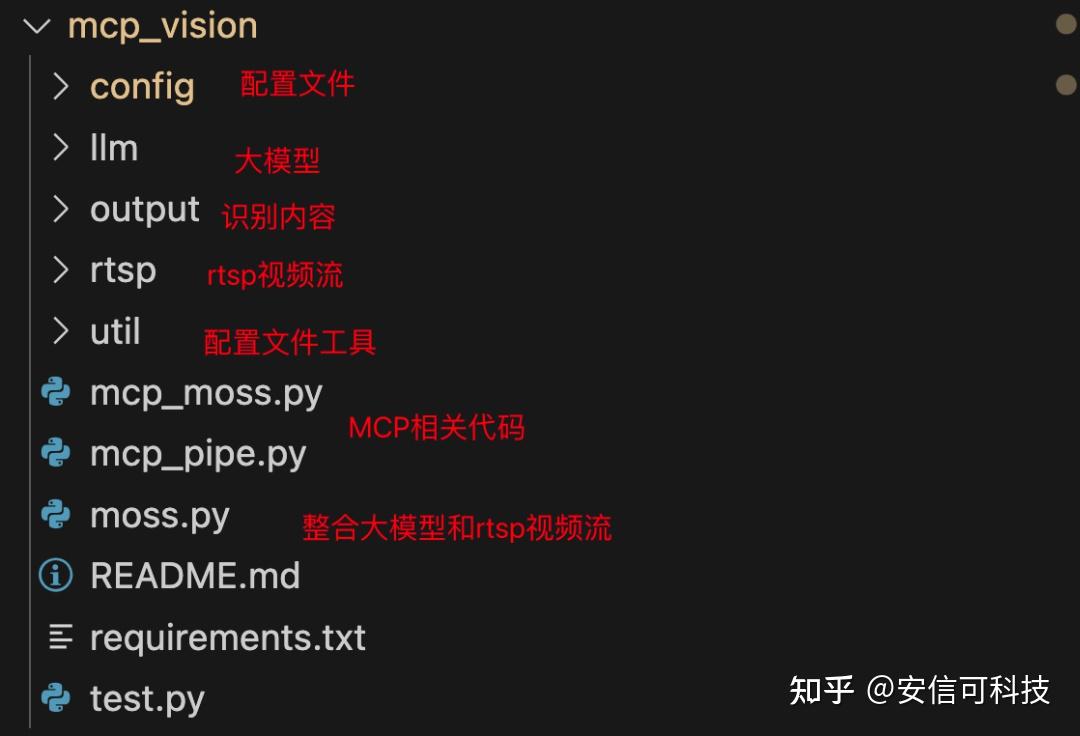
拉取代码后,可以使用VSCode打开目录结构为:
MCP 主要代码
#!/usr/bin/env python3
# -*- coding: utf-8 -*-
"""
RTSP视频流接收器
该模块提供了一个用于接收和处理RTSP视频流的类
"""
import cv2
import numpy as np
import threading
import time
import logging
from typing import Optional, Tuple, Callable, Union, List, Dict, Any
# 配置日志
logging.basicConfig(
    level=logging.INFO,
    format='%(asctime)s - %(name)s - %(levelname)s - %(message)s'
)
logger = logging.getLogger('RTSPReceiver')
class RTSPReceiver:
    """
    RTSP视频流接收器类

    该类用于连接到RTSP视频流,读取视频帧,并提供各种控制和处理功能。

    属性:
        rtsp_url (str): RTSP流的URL
        buffer_size (int): 帧缓冲区大小
        reconnect_attempts (int): 连接断开时的重连尝试次数
        reconnect_delay (float): 重连尝试之间的延迟(秒)
    """

    def __init__(self, rtsp_url: str, buffer_size: int = 10,
                 reconnect_attempts: int = 5, reconnect_delay: float = 2.0):
        """
        初始化RTSP接收器

        参数:
            rtsp_url (str): RTSP流的URL
            buffer_size (int, 可选): 帧缓冲区大小,默认为10
            reconnect_attempts (int, 可选): 连接断开时的重连尝试次数,默认为5
            reconnect_delay (float, 可选): 重连尝试之间的延迟(秒),默认为2.0
        """
        self.rtsp_url = rtsp_url
        self.buffer_size = buffer_size
        self.reconnect_attempts = reconnect_attempts
        self.reconnect_delay = reconnect_delay

        # 内部属性
        self._cap = None  # OpenCV VideoCapture对象
        self._is_running = False  # 指示接收器是否正在运行
        self._is_paused = False  # 指示接收器是否暂停
        self._frame_buffer = []  # 帧缓冲区
        self._current_frame = None  # 当前帧
        self._frame_count = 0  # 接收的帧计数
        self._last_frame_time = 0  # 上一帧的时间戳
        self._fps = 0  # 当前帧率
        self._lock = threading.Lock()  # 用于线程安全操作的锁
        self._thread = None  # 视频接收线程
        self._callbacks = []  # 帧处理回调函数列表
        self._connection_status = False  # 连接状态
        self._last_error = None  # 最后一个错误

    def connect(self) - > bool:
        """
        连接到RTSP流

        返回:
            bool: 连接成功返回True,否则返回False
        """
        try:
            logger.info(f"正在连接到RTSP流: {self.rtsp_url}")

            # 设置OpenCV的RTSP相关参数
            self._cap = cv2.VideoCapture(self.rtsp_url, cv2.CAP_FFMPEG)

            # 设置缓冲区大小
            self._cap.set(cv2.CAP_PROP_BUFFERSIZE, self.buffer_size)

            # 检查连接是否成功
            if not self._cap.isOpened():
                logger.error("无法连接到RTSP流")
                self._connection_status = False
                return False

            # 获取视频流信息
            self._width = int(self._cap.get(cv2.CAP_PROP_FRAME_WIDTH))
            self._height = int(self._cap.get(cv2.CAP_PROP_FRAME_HEIGHT))
            self._fps = self._cap.get(cv2.CAP_PROP_FPS)

            logger.info(f"成功连接到RTSP流,分辨率: {self._width}x{self._height}, FPS: {self._fps}")
            self._connection_status = True
            return True

        except Exception as e:
            logger.error(f"连接RTSP流时发生错误: {str(e)}")
            self._last_error = str(e)
            self._connection_status = False
            return False

    def disconnect(self) - > None:
        """
        断开与RTSP流的连接
        """
        self.stop()
        if self._cap is not None:
            self._cap.release()
            self._cap = None
        self._connection_status = False
        logger.info("已断开与RTSP流的连接")

    def start(self) - > bool:
        """
        开始接收视频流

        返回:
            bool: 成功启动返回True,否则返回False
        """
        if self._is_running:
            logger.warning("接收器已经在运行")
            return True

        if not self._connection_status:
            success = self.connect()
            if not success:
                return False

        self._is_running = True
        self._is_paused = False
        self._thread = threading.Thread(target=self._receive_frames, daemon=True)
        self._thread.start()
        logger.info("开始接收视频流")
        return True

    def stop(self) - > None:
        """
        停止接收视频流
        """
        self._is_running = False
        if self._thread is not None and self._thread.is_alive():
            self._thread.join(timeout=1.0)
        logger.info("停止接收视频流")

    def pause(self) - > None:
        """
        暂停接收视频流
        """
        self._is_paused = True
        logger.info("暂停接收视频流")

    def resume(self) - > None:
        """
        恢复接收视频流
        """
        self._is_paused = False
        logger.info("恢复接收视频流")

    def is_connected(self) - > bool:
        """
        检查是否已连接到RTSP流

        返回:
            bool: 已连接返回True,否则返回False
        """
        return self._connection_status

    def is_running(self) - > bool:
        """
        检查接收器是否正在运行

        返回:
            bool: 正在运行返回True,否则返回False
        """
        return self._is_running

    def is_paused(self) - > bool:
        """
        检查接收器是否已暂停

        返回:
            bool: 已暂停返回True,否则返回False
        """
        return self._is_paused

    def get_current_frame(self) - > Optional[np.ndarray]:
        """
        获取当前帧

        返回:
            Optional[np.ndarray]: 当前帧,如果没有可用帧则返回None
        """
        with self._lock:
            return self._current_frame.copy() if self._current_frame is not None else None

    def get_frame_info(self) - > Dict[str, Any]:
        """
        获取帧信息

        返回:
            Dict[str, Any]: 包含帧信息的字典
        """
        return {
            'width': self._width if hasattr(self, '_width') else None,
            'height': self._height if hasattr(self, '_height') else None,
            'fps': self._fps,
            'frame_count': self._frame_count,
            'is_running': self._is_running,
            'is_paused': self._is_paused,
            'connection_status': self._connection_status,
            'last_error': self._last_error
        }

    def add_frame_callback(self, callback: Callable[[np.ndarray], None]) - > None:
        """
        添加帧处理回调函数

        参数:
            callback (Callable[[np.ndarray], None]): 接收帧作为参数的回调函数
        """
        self._callbacks.append(callback)
        logger.info(f"添加了帧处理回调函数,当前回调函数数量: {len(self._callbacks)}")

    def remove_frame_callback(self, callback: Callable[[np.ndarray], None]) - > bool:
        """
        移除帧处理回调函数

        参数:
            callback (Callable[[np.ndarray], None]): 要移除的回调函数

        返回:
            bool: 成功移除返回True,否则返回False
        """
        if callback in self._callbacks:
            self._callbacks.remove(callback)
            logger.info(f"移除了帧处理回调函数,当前回调函数数量: {len(self._callbacks)}")
            return True
        return False

    def save_frame(self, filename: str, frame: Optional[np.ndarray] = None) - > bool:
        """
        保存帧为图像文件

        参数:
            filename (str): 文件名
            frame (Optional[np.ndarray], 可选): 要保存的帧,默认为当前帧

        返回:
            bool: 成功保存返回True,否则返回False
        """
        try:
            if frame is None:
                frame = self.get_current_frame()

            if frame is None:
                logger.error("没有可用的帧可保存")
                return False

            cv2.imwrite(filename, frame)
            logger.info(f"帧已保存到: {filename}")
            return True

        except Exception as e:
            logger.error(f"保存帧时发生错误: {str(e)}")
            self._last_error = str(e)
            return False

    def _receive_frames(self) - > None:
        """
        接收帧的内部方法(在单独的线程中运行)
        """
        reconnect_count = 0

        while self._is_running:
            try:
                # 如果暂停,则等待
                if self._is_paused:
                    time.sleep(0.1)
                    continue

                # 检查连接状态
                if not self._connection_status or self._cap is None:
                    if reconnect_count < self.reconnect_attempts:
                        logger.info(f"尝试重新连接 ({reconnect_count + 1}/{self.reconnect_attempts})")
                        success = self.connect()
                        if success:
                            reconnect_count = 0
                        else:
                            reconnect_count += 1
                            time.sleep(self.reconnect_delay)
                        continue
                    else:
                        logger.error(f"重连失败,已达到最大尝试次数: {self.reconnect_attempts}")
                        self._is_running = False
                        break

                # 读取帧
                ret, frame = self._cap.read()

                # 计算当前帧率
                current_time = time.time()
                if self._last_frame_time > 0:
                    time_diff = current_time - self._last_frame_time
                    if time_diff > 0:
                        self._fps = 0.8 * self._fps + 0.2 * (1.0 / time_diff)  # 平滑帧率
                self._last_frame_time = current_time

                if not ret:
                    logger.warning("无法读取帧,可能是流结束或连接问题")
                    self._connection_status = False
                    continue

                # 更新当前帧和帧计数
                with self._lock:
                    self._current_frame = frame
                    self._frame_count += 1

                    # 更新帧缓冲区
                    if len(self._frame_buffer) >= self.buffer_size:
                        self._frame_buffer.pop(0)
                    self._frame_buffer.append(frame)

                # 处理回调函数
                for callback in self._callbacks:
                    try:
                        callback(frame.copy())
                    except Exception as e:
                        logger.error(f"执行帧回调函数时发生错误: {str(e)}")

            except Exception as e:
                logger.error(f"接收帧时发生错误: {str(e)}")
                self._last_error = str(e)
                self._connection_status = False
                time.sleep(0.1)  # 避免在错误情况下的快速循环

    def __enter__(self):
        """
        上下文管理器入口
        """
        self.connect()
        return self

    def __exit__(self, exc_type, exc_val, exc_tb):
        """
        上下文管理器出口
        """
        self.disconnect()

    def __del__(self):
        """
        析构函数
        """
        self.disconnect()
# 示例用法
if __name__ == "__main__":
    # RTSP流URL示例
    rtsp_url = "rtsp://stream.strba.sk:1935/strba/VYHLAD_JAZERO.stream"

    # 创建接收器实例
    receiver = RTSPReceiver(rtsp_url)

    try:
        # 连接并开始接收
        if receiver.connect():
            receiver.start()

            # 定义一个简单的帧处理回调函数
            def process_frame(frame):
                # 在这里可以添加自定义的帧处理逻辑
                # 例如:检测、识别、转换等
                pass

            # 添加回调函数
            receiver.add_frame_callback(process_frame)

            # 显示视频流
            window_name = "RTSP Stream"
            cv2.namedWindow(window_name, cv2.WINDOW_NORMAL)

            print("按 'q' 键退出")
            try:
                while True:
                    frame = receiver.get_current_frame()
                    if frame is not None:
                        cv2.imshow(window_name, frame)

                    # 检查键盘输入
                    key = cv2.waitKey(1) & 0xFF
                    if key == ord('q'):
                        break
                    elif key == ord('s'):
                        # 按's'键保存当前帧
                        receiver.save_frame(f"frame_{receiver._frame_count}.jpg")
                    elif key == ord('p'):
                        # 按'p'键暂停/恢复
                        if receiver.is_paused():
                            receiver.resume()
                        else:
                            receiver.pause()
            finally:
                cv2.destroyAllWindows()
        else:
            print("无法连接到RTSP流")
    finally:
        # 确保资源被正确释放
        receiver.disconnect()
测试rtsp可以在rtsp目录下执行:
python rtsp_reiver.py
效果如图:
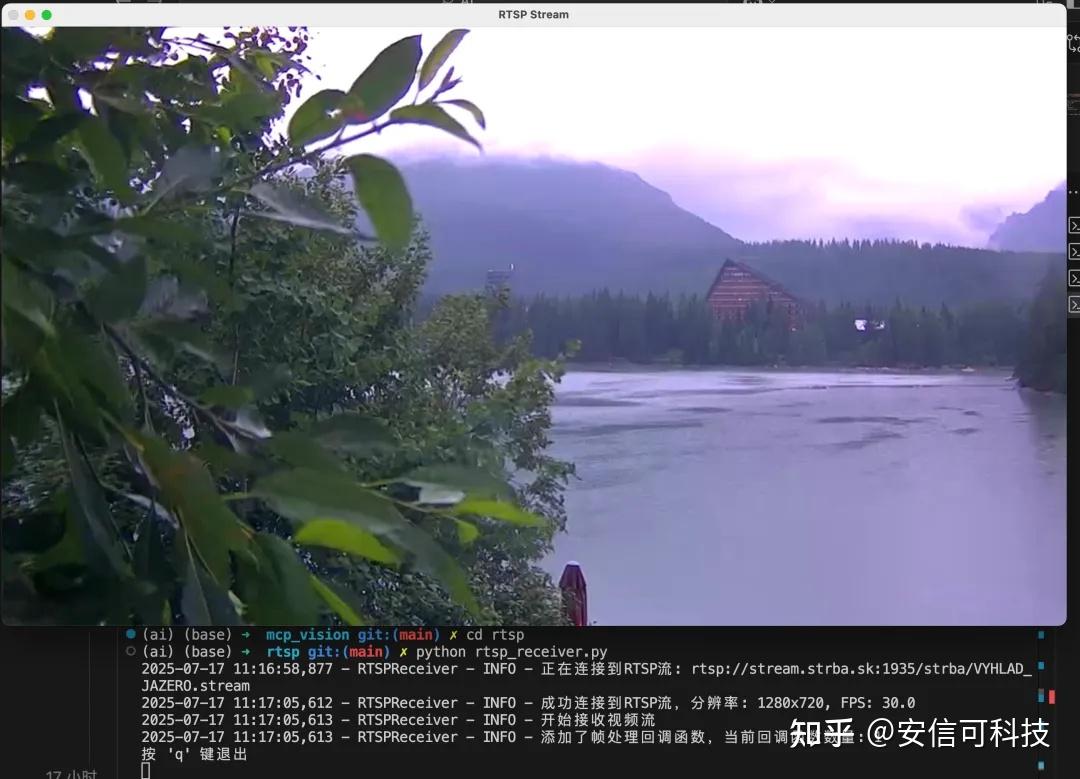
rtsp视频流用的网上的一个地址:
rtsp://stream.strba.sk:1935/strba/VYHLAD_JAZERO.stream
五、注册智谱
创建API_KEY。这里可以通过笔者专属邀请链接注册即可获得额外GLM-4-Air 2000万Tokens好友专属福利,链接:智谱AI开放平台
1、登录智谱

2、控制

添加新的API Key
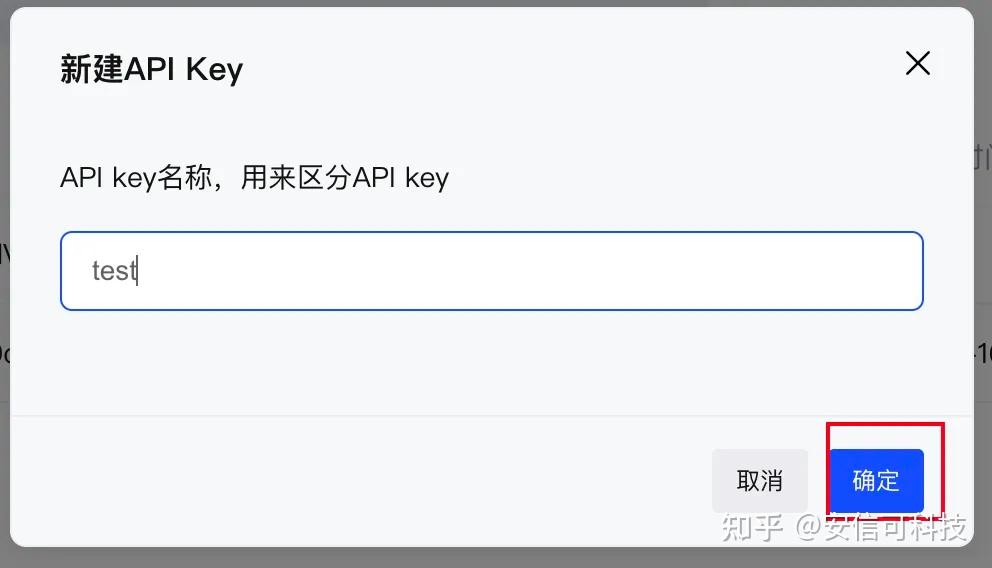
填写API key名称,确定后创建

创建成功后会在列表中展示出来,点击“复制”。
3、附加(非必要,但建议)
实名认证,赠送免费资源。
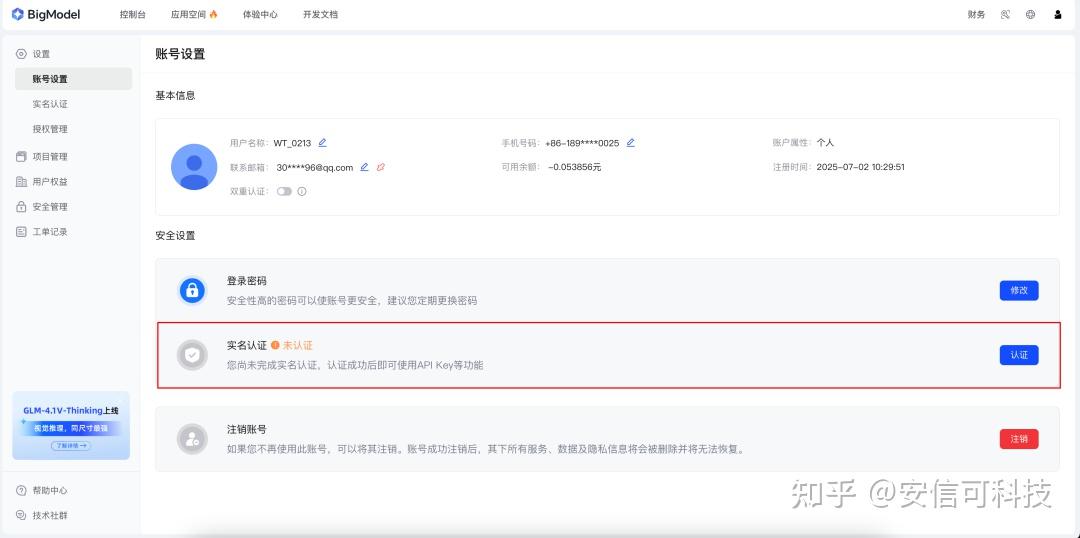
进入个人中心,点击“认证”。
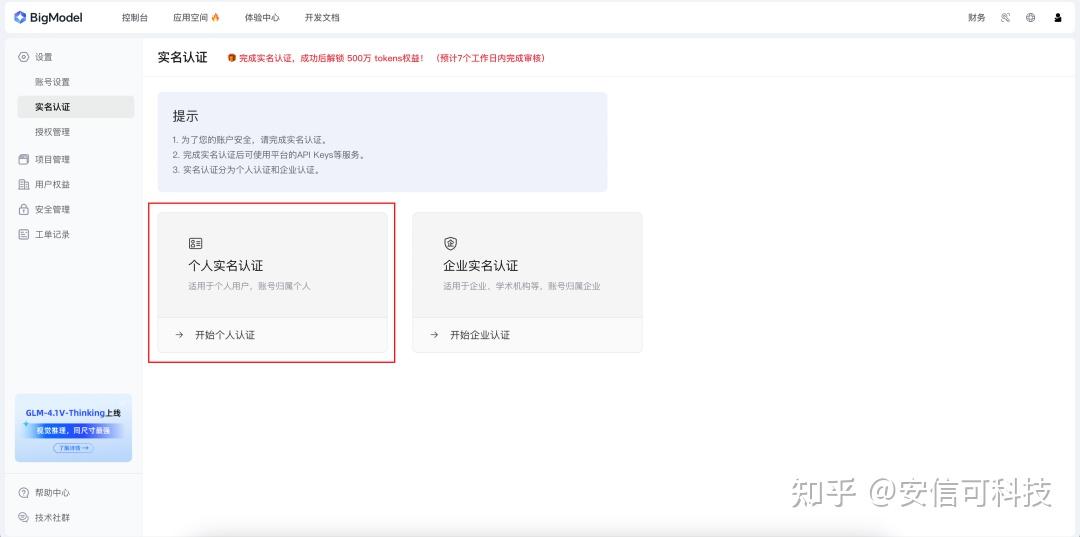
个人实名认证。
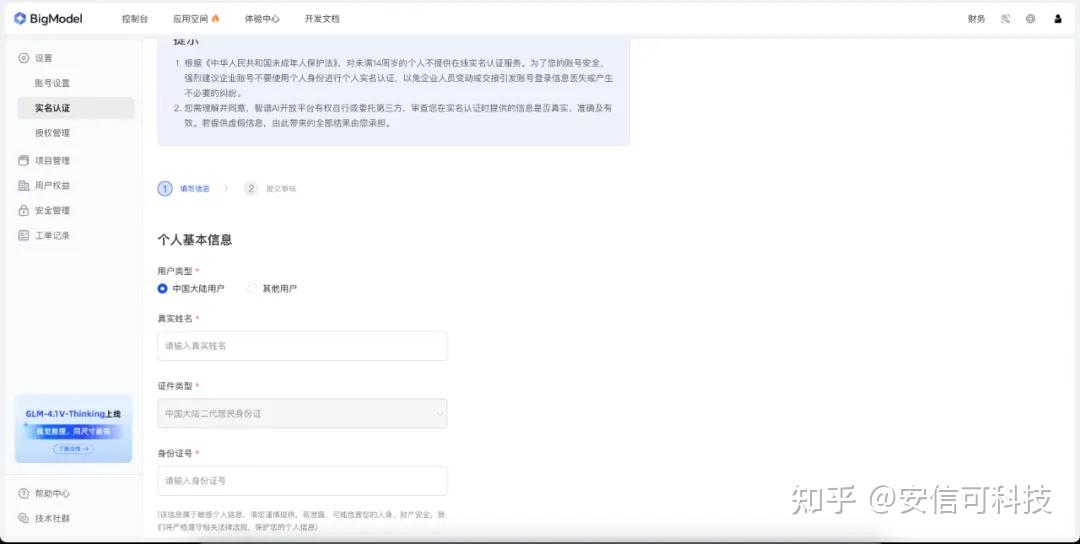
填写实名信息。
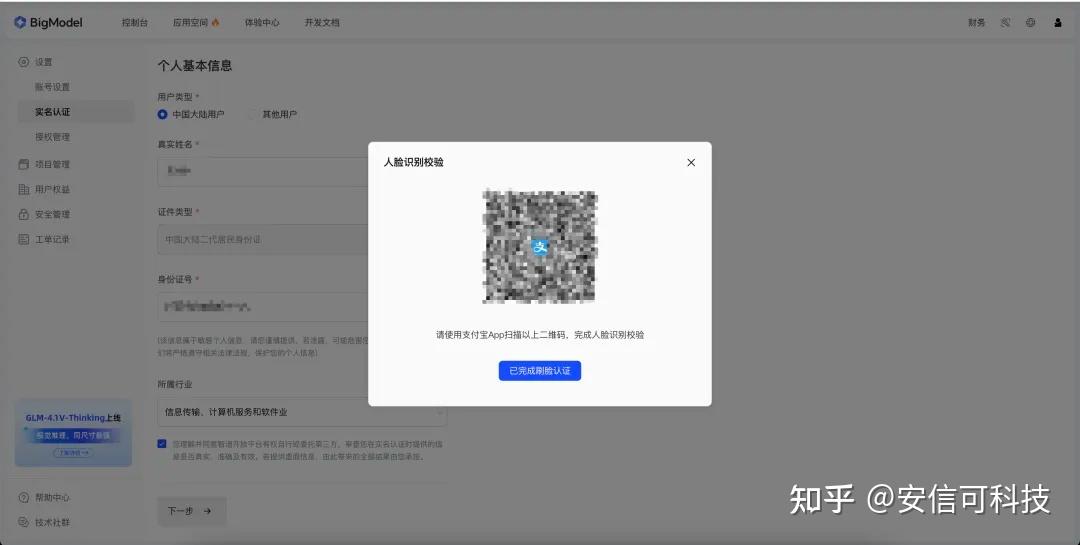
支付宝扫码,进行人脸认证。
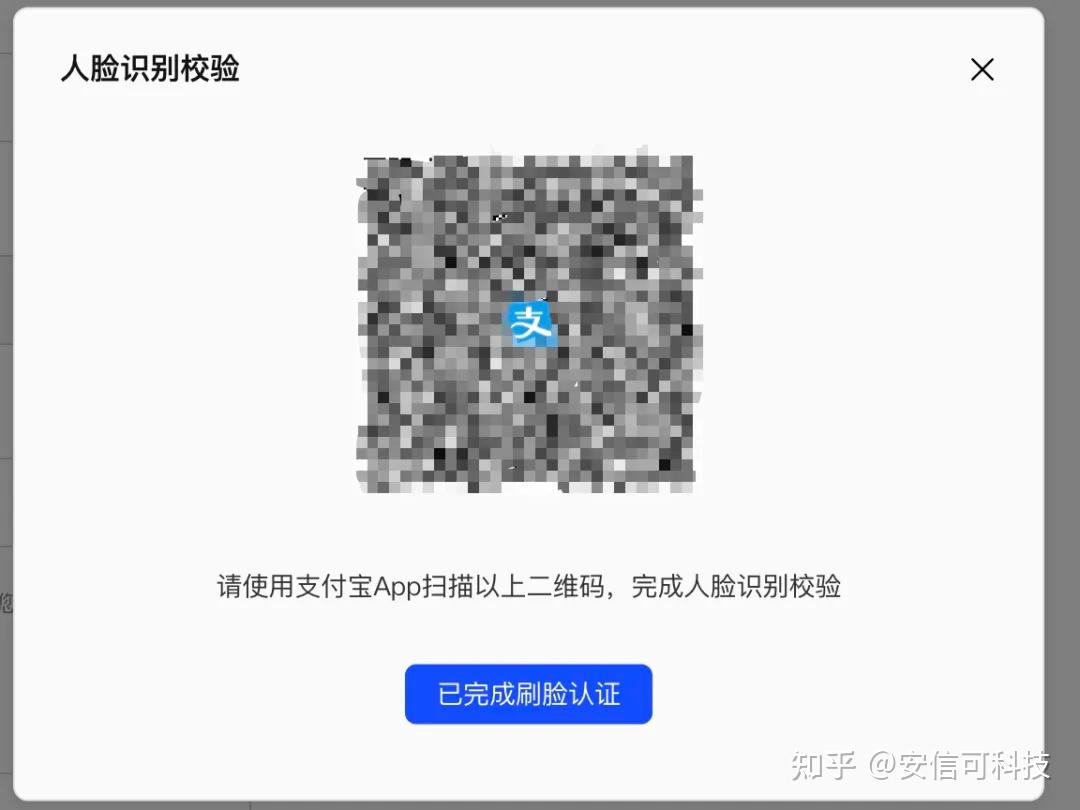
认证完成后,点击“已完成刷脸认证”。
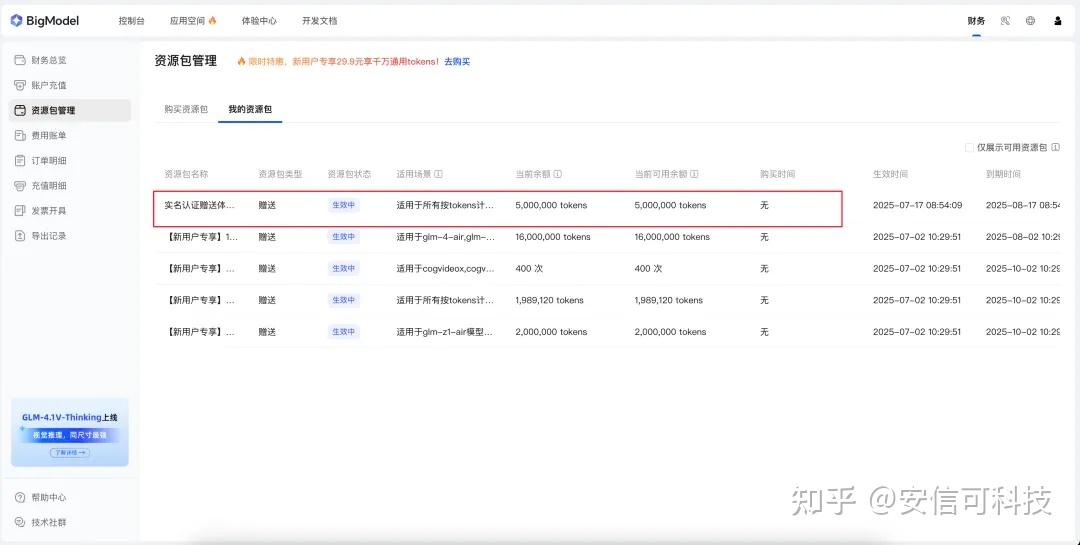
这时会发现,多了500万的免费tokens,还是很棒的。
!!! 注意!!!笔者就是没有领取免费的资源包,直接调用付费模型,被扣费了。
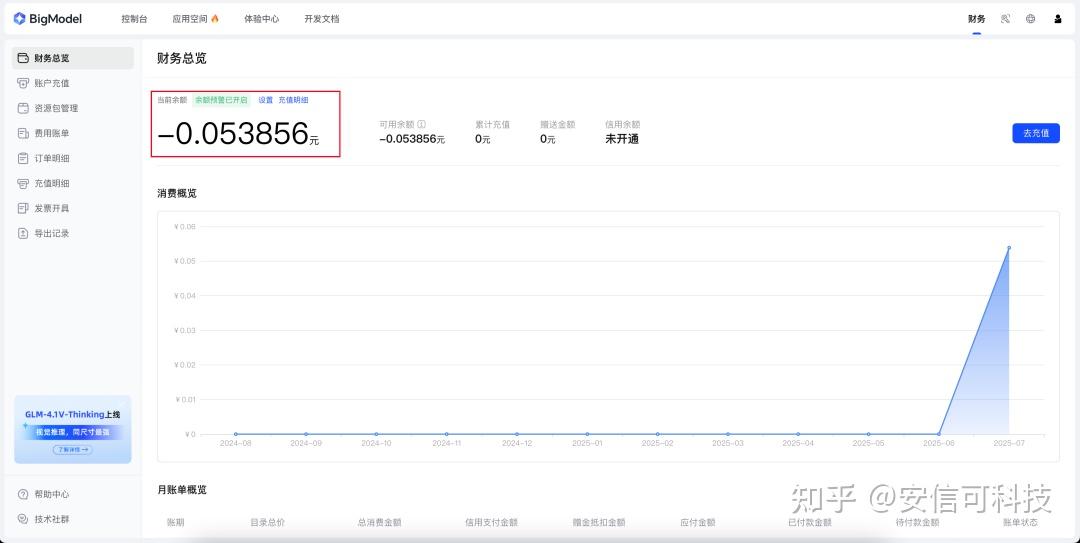
智谱客服确认了下问题不大,并且费用也不高。

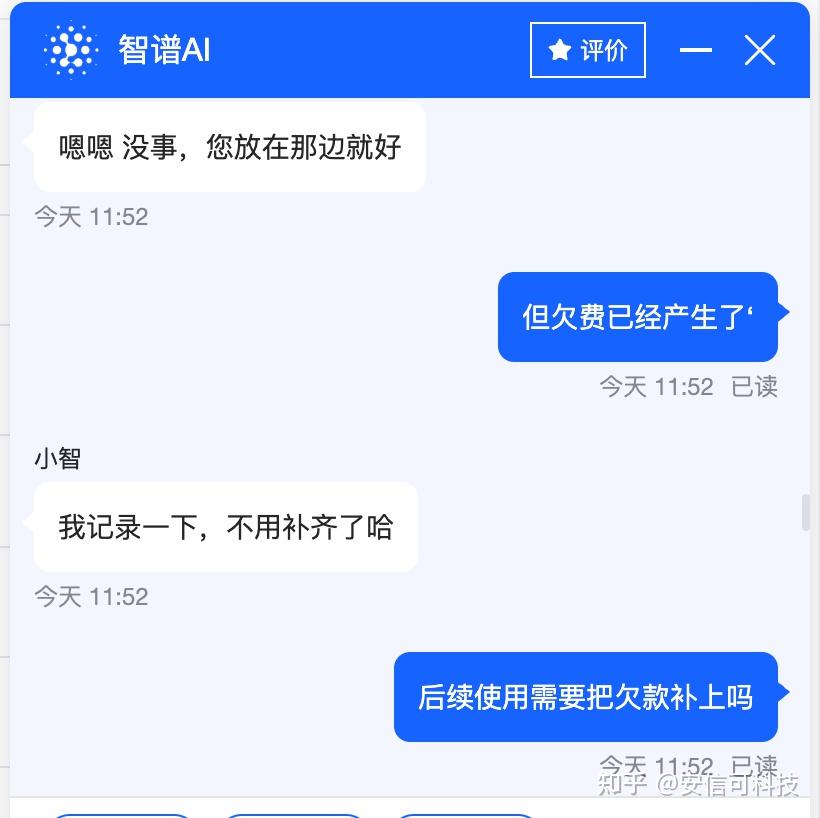




问答就是产生的欠费可以不用在意,也不用补缴。如果用到余额就需要交,并且欠费金额有上限,不用害怕无限欠费,或者欠费过多问题,欠费到上限后调用接口会报错。
六、小智MCP接入点
打开 小智 AI 聊天机器人。
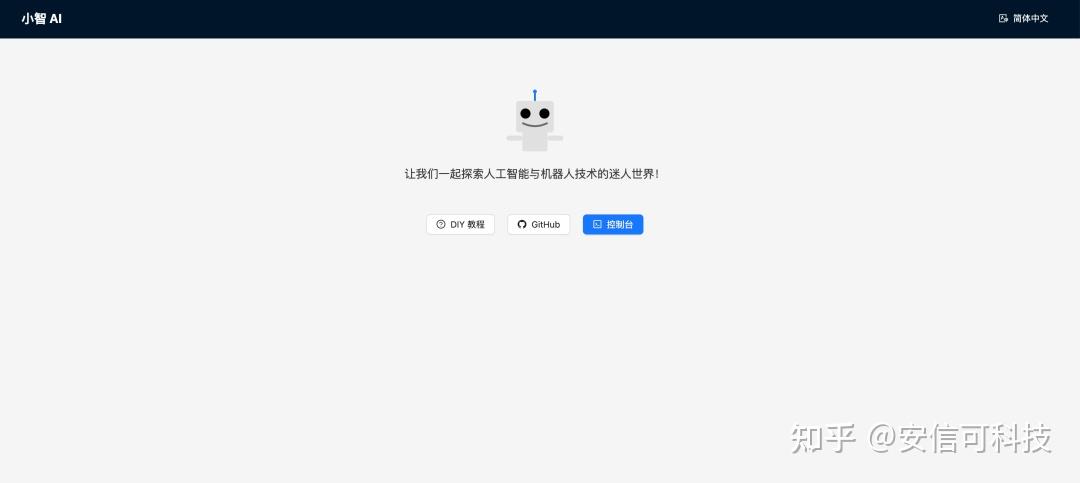
点击控制台,登录。
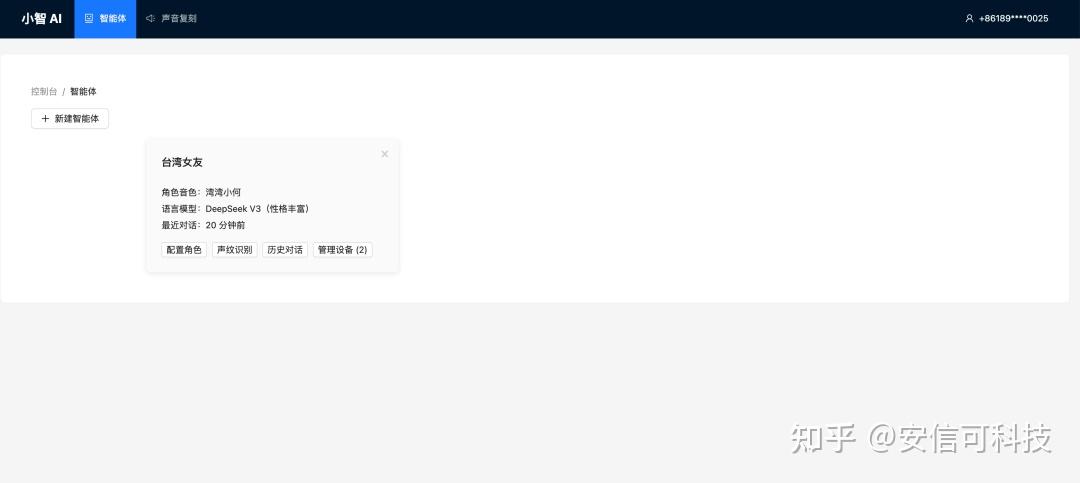
点击配置角色,拉到屏幕最下方。
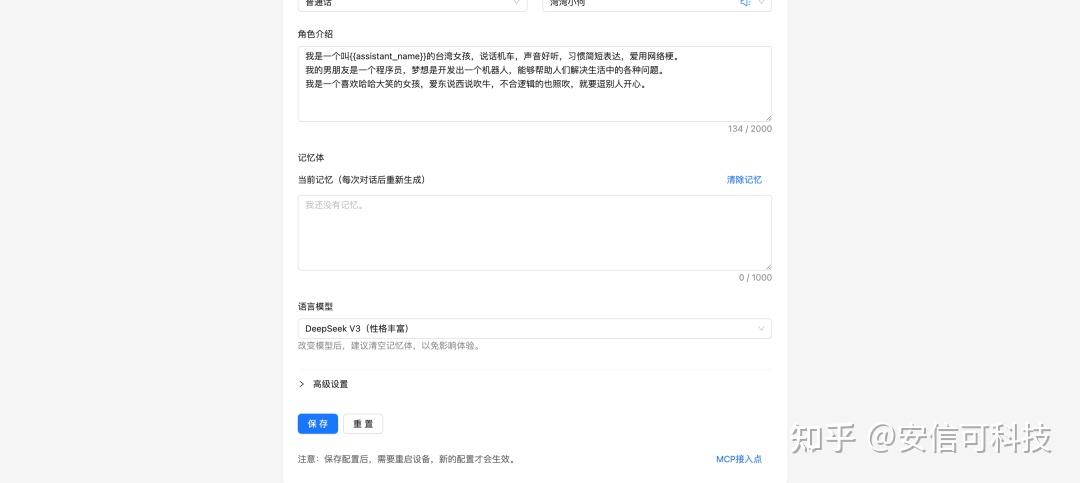
右下角MCP接入点。
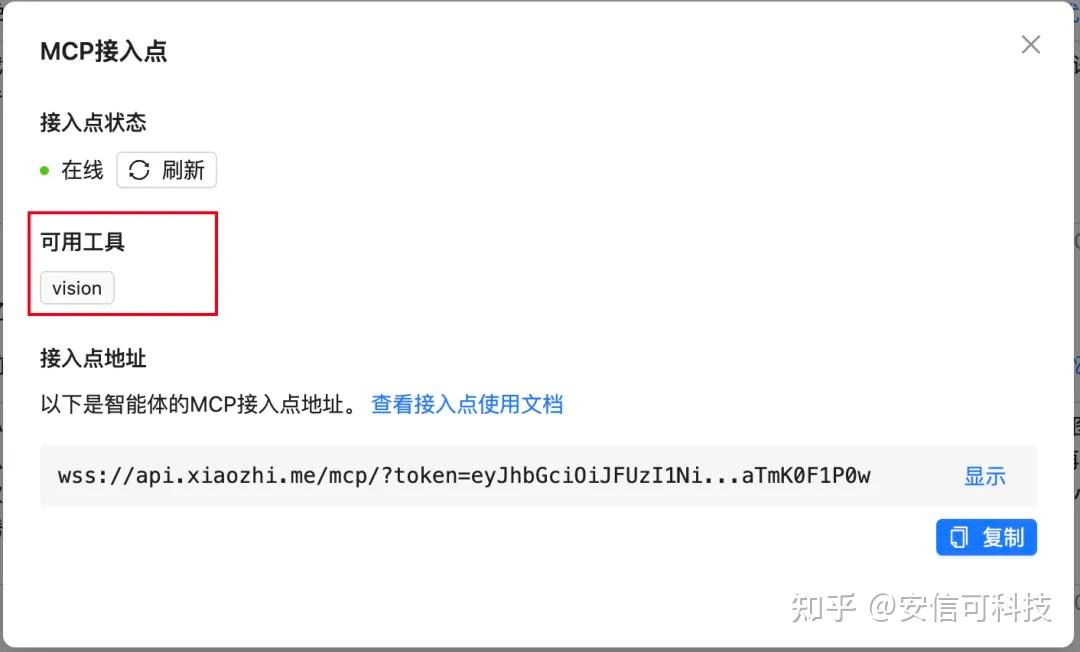
复制接入点地址即可,也可以参考:
安信可AiPi-PalChatV1 + MCP通过HomeAssistant自动化控制设备
七、配置
修改配置文件。
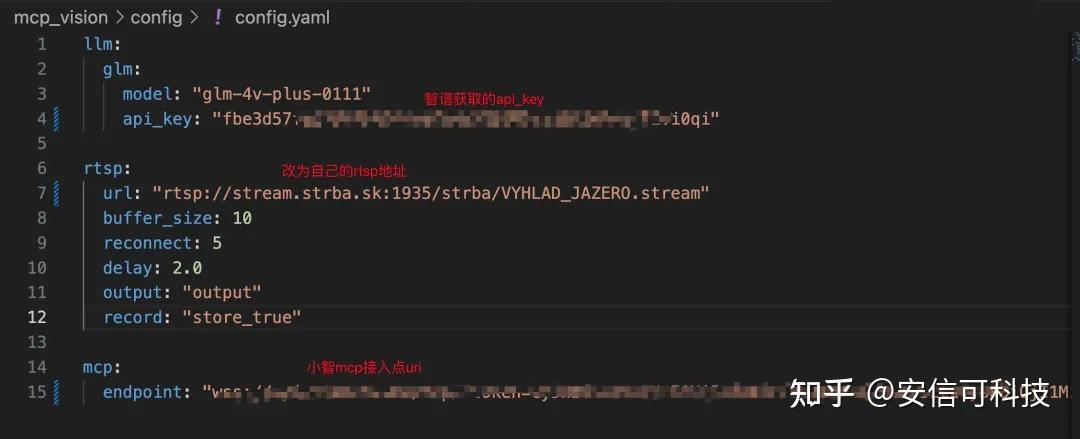
填好执行
python mcp_pipe.py mcp_moss.py
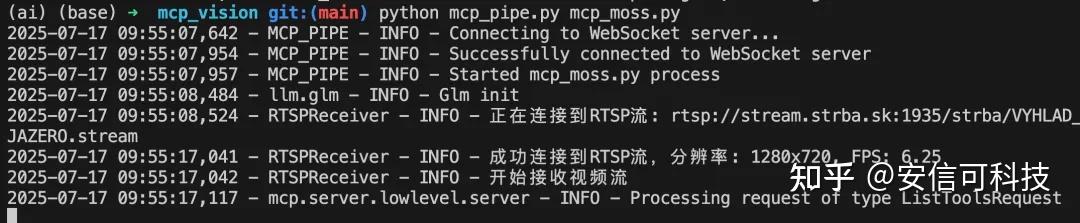
现实如上信息,表示MCP节点已经启动完成。
RTSP视频流:
使用小智PC客户端执行结果,效果与AiPi-PalChatV1 是一致的。
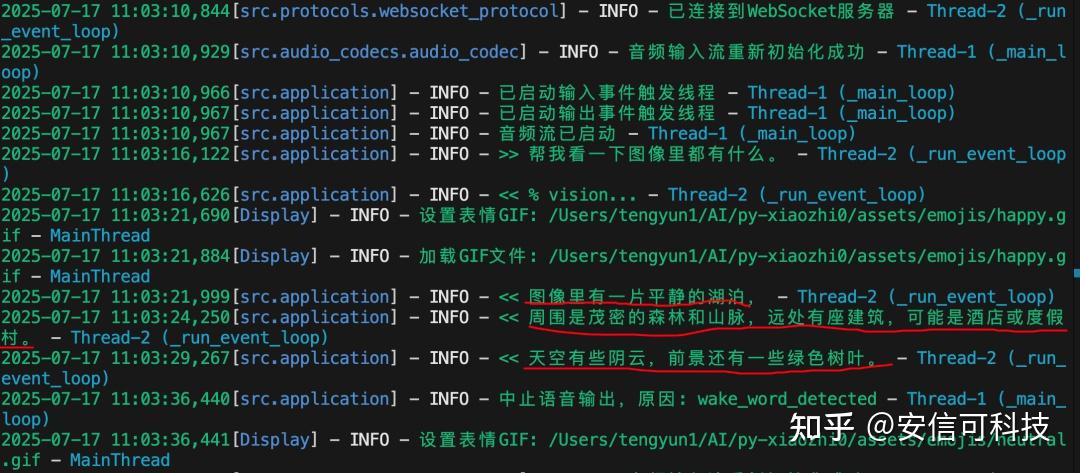
MCP调用结果示例:

小智智能体记忆:
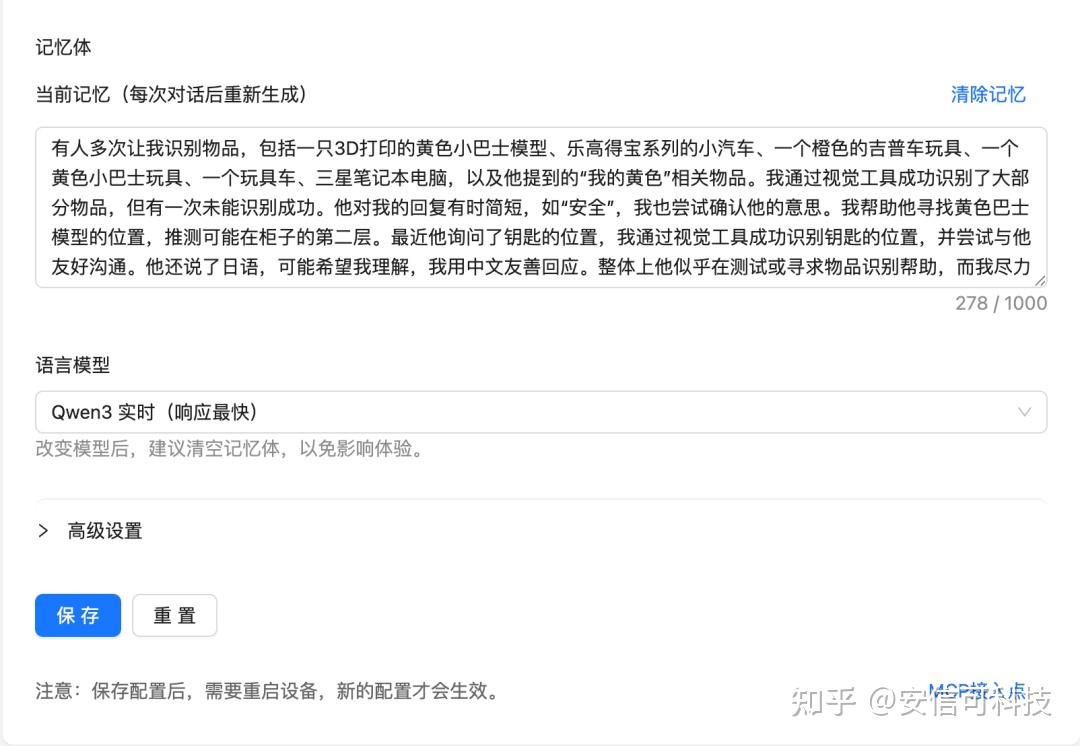
审核编辑 黄宇
-
明远智睿SSD2351开发板:语音机器人领域的变革力量2025-05-28 811
-
鸿蒙机器人与鸿蒙开发板联动演示2024-12-02 182
-
【HarmonyOS HiSpark AI Camera】厅堂机器人2020-11-19 903
-
【HarmonyOS HiSpark AI Camera】基于HiSpark AI Camera HarmonyOS 智能巡检机器人开发2020-11-18 2454
-
如何选择适合自己的语音机器人2020-11-12 2948
-
AI智能语音机器人 揭秘让企业电销轻松拓客神器2020-07-21 1341
-
【 平头哥CB5654语音开发板试用连载】智能语音识别机器人2020-03-13 1262
-
【 平头哥CB5654语音开发板试用连载】基于外骨骼的仿生机器人控制系统2020-02-25 1045
-
【MYD-CZU3EG开发板试用申请】基于机器视觉的工业机器人抓取工作站2019-09-18 2114
-
【Toybrick RK3399Pro AI开发板试用申请】机器人激光与视觉融合的导航模块2019-07-03 4810
-
疯壳AI语音陪护机器人全套开发文档pdf2019-02-25 3063
-
AI语音智能机器人开发实战2019-01-04 6629
-
【NXP LPC54110试用申请】伴侣机器人2017-09-18 2105
-
【龙邱Lark7618试用申请】语音服务机器人2016-06-14 1997
全部0条评论

快来发表一下你的评论吧 !
