资料下载


使用ESP8266远程点亮鞭炮或毒气弹的方法

王桂英
分享资料个
描述
一种使用 ESP8266 远程点亮鞭炮或毒气弹的方法。
大家好,我们又回来了另一个关于如何构建一个可以远程打开或激活鞭炮或毒气弹的小电路的教程。
这个电路背后的理论很简单,我们想要创造一个足够强大的电弧来点燃连接在毒气弹或任何特定烟花上的保险丝。esp8266 将托管一个网络服务器,我们将使用它来远程激活高压发生器并点亮保险丝。
遥控雷管 ESP8266(订阅)
所需组件高压发生器ESP8266 BD139 晶体管开关(拨动或推动)取决于你2 锂电池二极管 1N4148毒气弹/烟花
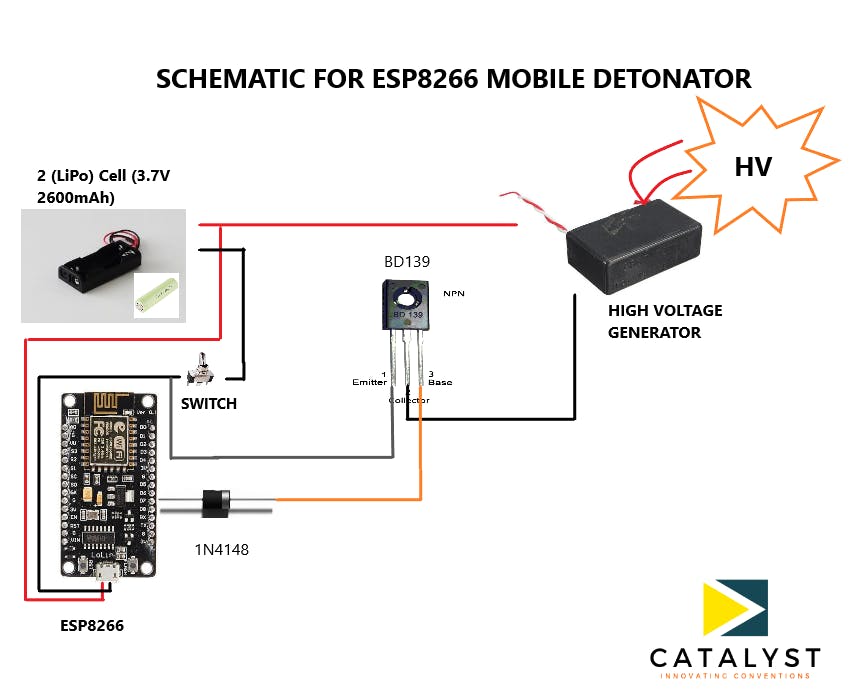
如上图所示组装电路,并使用 Arduino IDE 对 esp8266 进行编程。
我们在程序中使用引脚号 GPIO13 或 D7,它与一个 1N4148 二极管相连。您不需要连接二极管,但我连接了它以防我不小心连接了错误的电线。
但是在编程之前先了解这个重要的事情,esp8266 可以在 ST 或 AP 模式下工作,或者两者兼而有之。在 AP 模式下,esp8266 不需要将自身与路由器或互联网连接,它使用您自己的凭据托管网络服务器本身。其次,如果您想在 ST 模式下使用 esp8266,那么程序会稍作更改,您可以使用该程序首先将 esp8266 与家庭路由器连接,然后您可以将其连接到您将能够使用的托管 Web 服务器从串行监视器获取 IP。但是一个人应该使用 AP 模式来点亮烟花,否则每次你必须使用路由器的互联网凭据对 esp 进行编程时。
此外,在执行所有这些操作之前,请确保您已在 Arduino IDE 中安装了 esp8266 库。
我在 AP(接入点)模式下使用 esp 来完成这项任务,并在 ST(站)模式下使用,以便更好地了解事情是如何工作的。
在 AP 模式下使用 ESP8266 的程序
#include /* Put your SSID & Password */
const char* ssid = "ZAIN"; // Enter SSID here
const char* password = "12345678"; //Enter Password here/* Put IP Address details */
IPAddress local_ip(192,168,4,2);
IPAddress gateway(192,168,4,1);
IPAddress subnet(255,255,255,0);ESP8266WebServer server(80);uint8_t LED1pin = D7;
bool LED1status = LOW;uint8_t LED2pin = D2;/*If you want to control another set of firework, use it for a testing led*/
bool LED2status = LOW;void setup() {
Serial.begin(115200);
pinMode(LED1pin, OUTPUT);
pinMode(LED2pin, OUTPUT);WiFi.softAP(ssid, password);
WiFi.softAPConfig(local_ip, gateway, subnet);
delay(100);
server.on("/", handle_OnConnect);
server.on("/led1on", handle_led1on);
server.on("/led1off", handle_led1off);
server.on("/led2on", handle_led2on);
server.on("/led2off", handle_led2off);
server.onNotFound(handle_NotFound);
server.begin();
Serial.println("HTTP server started");
}
void loop() {
server.handleClient();
if(LED1status)
{digitalWrite(LED1pin, HIGH);}
else
{digitalWrite(LED1pin, LOW);}
if(LED2status)
{digitalWrite(LED2pin, HIGH);}
else
{digitalWrite(LED2pin, LOW);}
}void handle_OnConnect() {
LED1status = LOW;
LED2status = LOW;
Serial.println("GPIO7 Status: OFF | GPIO6 Status: OFF");
server.send(200, "text/html", SendHTML(LED1status,LED2status));
}void handle_led1on() {
LED1status = HIGH;
Serial.println("GPIO7 Status: ON");
server.send(200, "text/html", SendHTML(true,LED2status));
}void handle_led1off() {
LED1status = LOW;
Serial.println("GPIO7 Status: OFF");
server.send(200, "text/html", SendHTML(false,LED2status));
}void handle_led2on() {
LED2status = HIGH;
Serial.println("GPIO6 Status: ON");
server.send(200, "text/html", SendHTML(LED1status,true));
}void handle_led2off() {
LED2status = LOW;
Serial.println("GPIO6 Status: OFF");
server.send(200, "text/html", SendHTML(LED1status,false));
}void handle_NotFound(){
server.send(404, "text/plain", "Not found");
}String SendHTML(uint8_t led1stat,uint8_t led2stat){
String ptr = " \n";
ptr +="\n";
ptr +="LED Control \n";
ptr +="\n";
ptr +="\n";
ptr +="\n";
ptr +="BOOM BOOM!!!!
\n";
ptr +="USING AP MODE
\n";
if(led1stat)
{ptr +="LED1 Status: ON
OFF\n";}
else
{ptr +="LED1 Status: OFF
ON\n";}if(led2stat)
{ptr +="LED2 Status: ON
OFF\n";}
else
{ptr +="LED2 Status: OFF
ON\n";}ptr +="\n";
ptr +="\n";
return ptr;
}
在 ST 模式下使用 ESP8266 的程序
#include LETS FIRE EVERYTHING!
");
if(value == HIGH) {
client.print("ON");
} else {
client.print("OFF");
}client.println("
");
client.println("");
client.println("
");
client.println("");
delay(1);
Serial.println("Client disonnected");
Serial.println("");
}
esp8266烧写成功后在ST模式下,给esp8266上电,查看串口监视器会提示已经连接到你家的WIFI。它还将显示您可以在手机中输入的IP以访问网页并使用电路。
最后,不要使用它来对某人造成伤害,这仅用于教育目的。
声明:本文内容及配图由入驻作者撰写或者入驻合作网站授权转载。文章观点仅代表作者本人,不代表电子发烧友网立场。文章及其配图仅供工程师学习之用,如有内容侵权或者其他违规问题,请联系本站处理。 举报投诉
- 相关下载
- 相关文章